Get started
Start a logged serial session with one command, then use the menu to search output, work with embedded Linux files or run a formula. Sericon handles adapter selection and passive baud detection by default; flags are available when the port and rate are already known.
Start a session
Install Sericon, connect the UART adapter, and run:
sericon
Sericon selects an adapter using its configured preferences and starts at 115200 baud. It displays incoming output immediately and creates a log directory in the current host directory. No configuration file is required.
The header shows the port, baud rate, session ID and log location. A waiting status means the baud rate is not yet confirmed. A silent device cannot establish a baud rate; boot output or a fixed rate may be needed. Sericon does not send probe characters or power-cycle the device.
To choose the port or rate explicitly:
sericon devices
sericon --port /dev/ttyUSB0 --baud 115200
Other common overrides:
sericon --log-dir ./captures
sericon --no-log
sericon --serial-number 0001
Flags override configuration, which overrides built-in defaults.
Open the menu
Press Ctrl-], release it, then press m. Use ↑/↓ to select an action and Enter to choose it. Esc/q returns to the previous view.
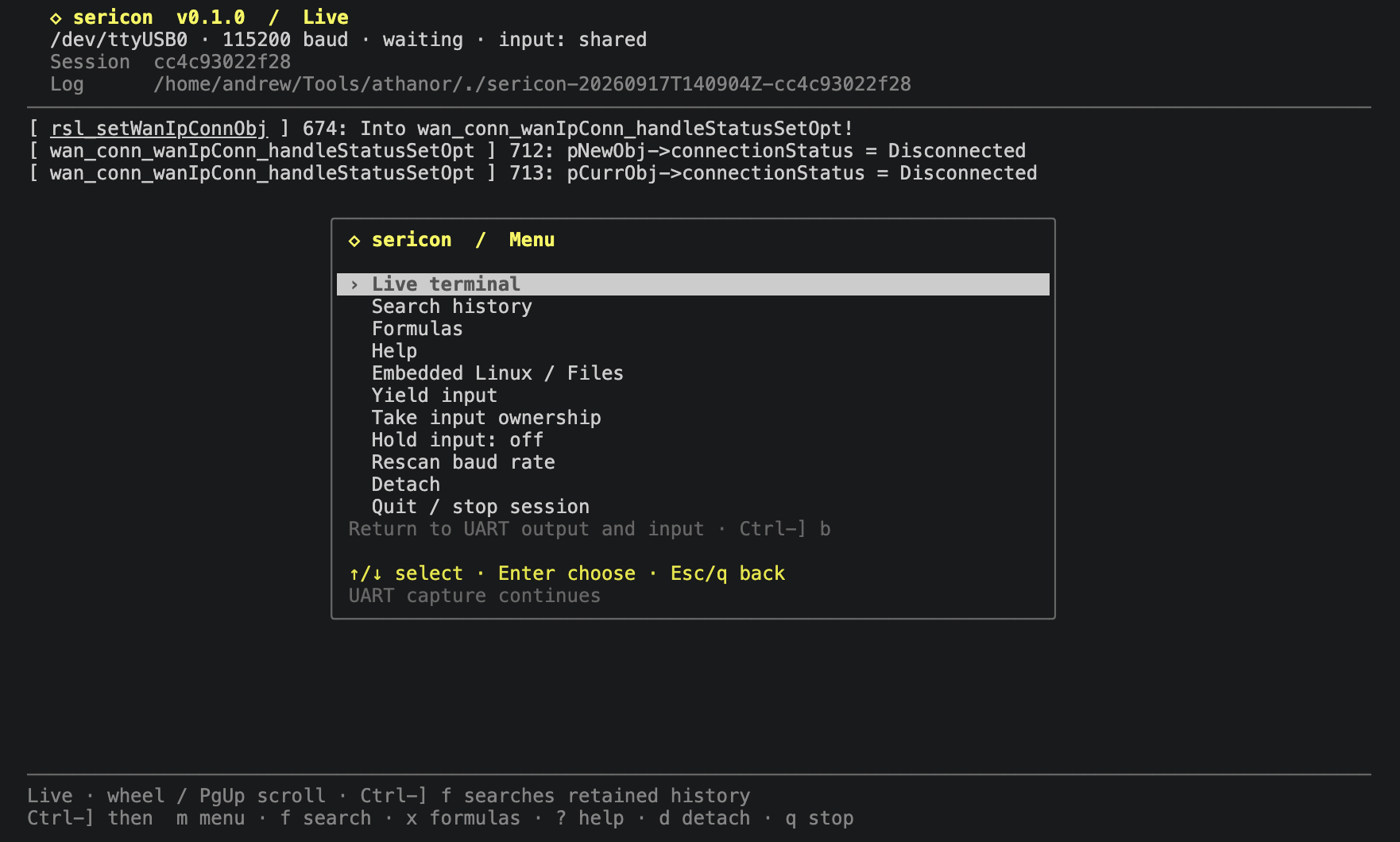
| Task | Control |
|---|---|
| Read earlier output | Mouse wheel or Page Up / Page Down |
| Return to live output | Ctrl-] b |
| Search history | Ctrl-] f |
| Run a formula | Ctrl-] x |
| Browse embedded Linux files | Ctrl-] l |
| View help | Ctrl-] ? |
| Detach and keep capture running | Ctrl-] d |
| Stop and close the UART | Ctrl-] q |
Ctrl-C goes to the device. It does not quit Sericon. Ordinary typing in scrollback returns to live output and sends those keys to the device.
Stop or reconnect
Ctrl-] q stops the session and prints its saved log directory. Ctrl-] d detaches while the session keeps running. To reconnect:
sericon sessions
sericon attach
If multiple sessions are running, pass the ID shown by sericon sessions: sericon attach SESSION_ID.
Use Files or an AI tool
At an empty, logged-in Linux shell prompt, open Embedded Linux / Files → Connect and browse. The Files guide covers downloads, the file tree, uploads and device inspection. The optional helper supplies file operations when the DUT's shell tools are limited.
To share the running session with Codex, Claude Code or another local client, follow AI tools and MCP. All clients use the same broker; they do not open competing UART connections.
See troubleshooting for adapter access, unreadable output, input ownership and helper compatibility.