Terminal controls
Press Ctrl-], release, then m to open the action menu. Use the arrow keys or mouse wheel to select an action, Enter to choose it, and Esc/q to return. Capture continues while menus are open.
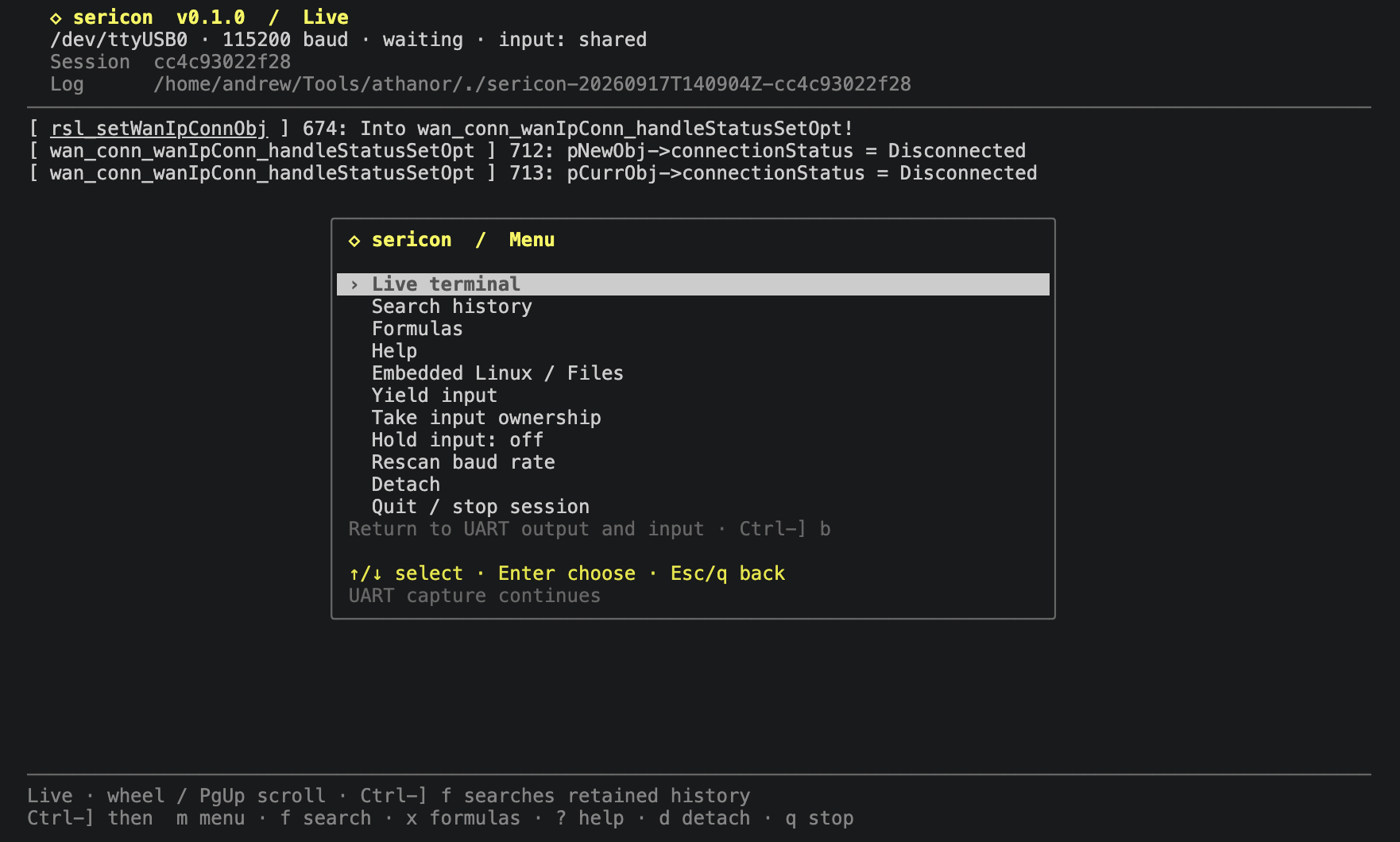
Menus and prompts
Every option menu uses the same controls, including Files, helper setup, formulas and search options. Home/End selects the first/last row. Visible return actions avoid requiring letter shortcuts. Text prompts use Enter to accept, Ctrl-U to clear and Esc to cancel.
Ctrl-] ? opens scrollable help. Use arrows or j/k to scroll, Space for a page, and Enter or q to return. Ctrl-] b returns to live output from another view.
Keystrokes and shared input
The terminal forwards keystrokes immediately. Ctrl-C is sent to the target. Local controls use Ctrl-] followed by another key:
| Key | Action |
|---|---|
m |
Open the action menu from any view; arrows select, Enter chooses, Esc/q closes |
? |
Show terminal/search shortcuts and regex examples |
f |
Open the history search prompt |
x |
Open formulas, background runs, and findings |
l |
Open Embedded Linux / Files |
b |
Return to live output from scrollback or another view |
q |
Stop the session, flush logs, and close the UART |
d |
Detach while the session continues |
a |
Yield your input reservation |
t |
Take input ownership from another client |
o |
Toggle holding input across line boundaries |
r |
Restart passive baud detection; release input first |
] |
Send a literal Ctrl-] |
Everyone receives UART output. An AI transmission is also shown with its actor label, including when the device does not echo it.
Human input reserves the writer until Enter, Ctrl-C, or Ctrl-D is sent. Other
writers get a busy response while a partial command is outstanding. Holding
input with Ctrl-] o is useful for full-screen programs or multi-step raw
interactions. These boundaries coordinate input; they do not establish when a
remote command has finished. Agents can explicitly reserve input across a
multi-step operation.
An unfinished reservation survives its client disconnecting. Reattach and use
Ctrl-] t to take over, then finish or cancel the input. Yielding explicitly
does not erase text already sent to the device.
Closing the terminal or detaching leaves the session running. Use Ctrl-] q or
sericon stop to end it. The original terminal attributes are restored on
normal exit and handled termination signals.
Stopping from the terminal (shortcut or menu) prints the capture directory
before session stopped. If logging was disabled, it says no session log was saved.
Scrollback
Scrolling works directly in the UART pane, without entering a copy mode:
| Input | Action |
|---|---|
| Mouse wheel over UART output | Scroll three lines |
| Page Up / Page Down | Scroll a page |
| End, while scrolled back | Return to the latest output |
| Ctrl-] b | Return to live output from any view |
| Ordinary typing | Return to live output and send the keys to the DUT |
New output keeps arriving while you read. The viewed lines stay in place and the footer shows how far back you are; reaching the bottom resumes following output. Capture, formulas and other clients continue independently. Scrolling does not reserve UART input. q remains an ordinary character sent to the DUT. At the live prompt, End also passes through to the DUT normally.
Each attached terminal retains up to 10,000 rendered lines by default.
Set [terminal].scrollback_lines to a value from 0 to 100000; zero disables
the buffer. Its memory use grows with the line count and terminal width. The
oldest lines expire when the buffer fills. Existing history keeps its original
wrapping when you resize the window. Device screen resets can clear this local
buffer; the session log and searchable RX/TX history remain separate and exact.
Wheel support uses terminal mouse reporting. Depending on your terminal, hold
Shift while dragging to select text. Set [terminal].mouse = false to keep
your terminal's usual mouse handling and use Page Up / Page Down instead.
The wheel also selects actions in the menu and scrolls live help; other modal
views ignore mouse reports. These settings apply when starting or attaching a
terminal, so an existing broker does not need a restart.
Appearance
Sericon uses the terminal’s background and text colours. Set NO_COLOR=1 to disable its colours; selections and matches retain emphasis. Device terminal controls are rendered inside the UART pane, while capture files preserve the original bytes.